
Install and quick start
OpenPPC runs three ways: in your browser with nothing installed, from the command line, and inside Claude, Cursor or ChatGPT. All three run the same engine.
Use it in your browser
Everything runs inside the browser tab. Your export and any audit you paste stay on your computer.
Open the app
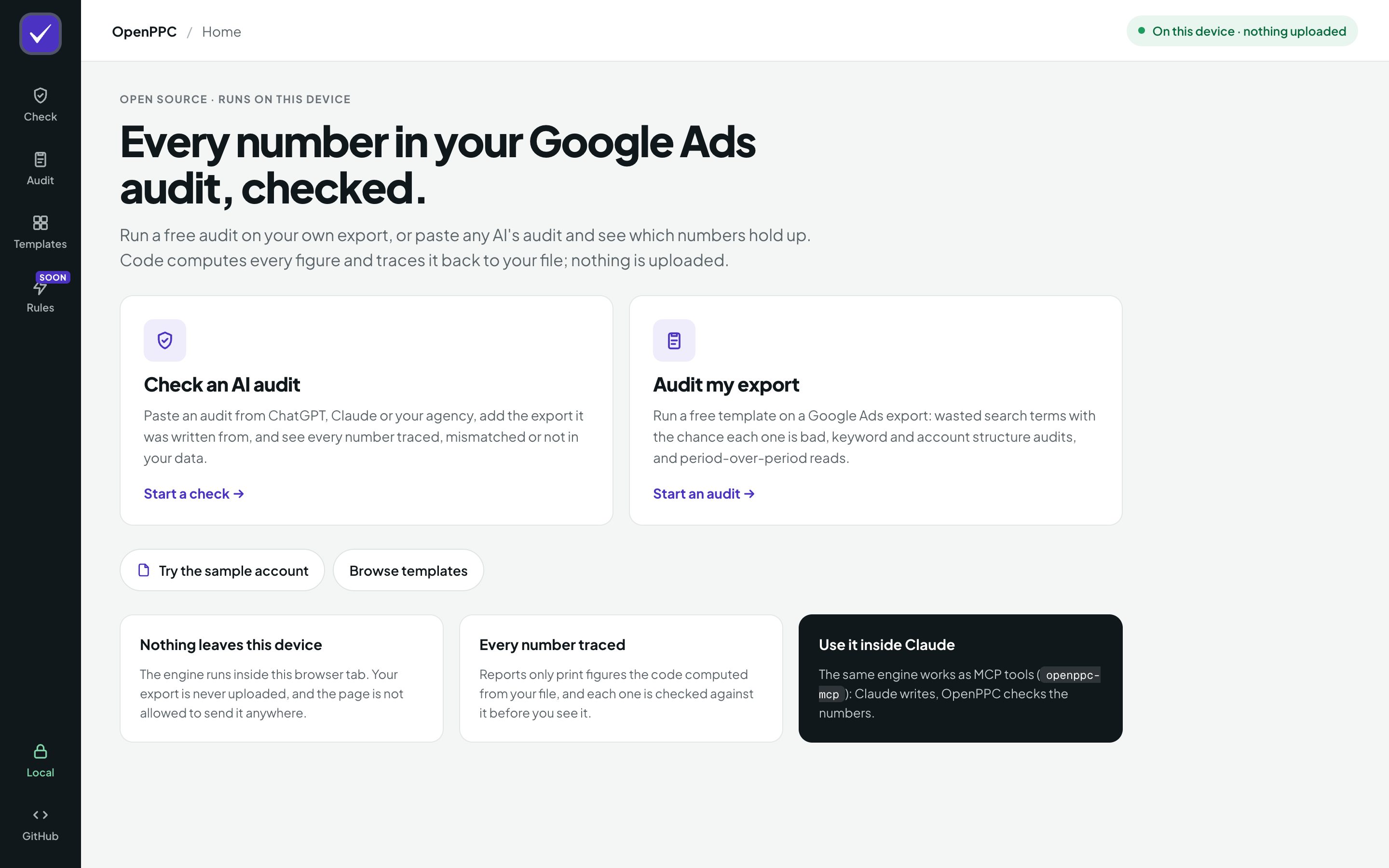
Go to openppc.si/app. The first visit downloads the engine, about 12 MB, and your browser keeps it for next time. Click Try the sample account to see a full audit before you use your own data.
Export a report from Google Ads
OpenPPC reads the report you download. It never signs in to Google Ads.
- Search terms report (for the waste audit): in Google Ads, open Campaigns, then Insights and reports, then Search terms. Pick the date range, then Download and choose .csv.
- Keywords report (for the keyword audit): open Campaigns, then Audiences, keywords and content, then Search keywords. Pick the date range, add the Quality Score column if you want that section, then Download and choose .csv.
Keep the file as Google exports it. OpenPPC skips Google's title, date and total lines, and reads the Excel-style export too.
Run an audit
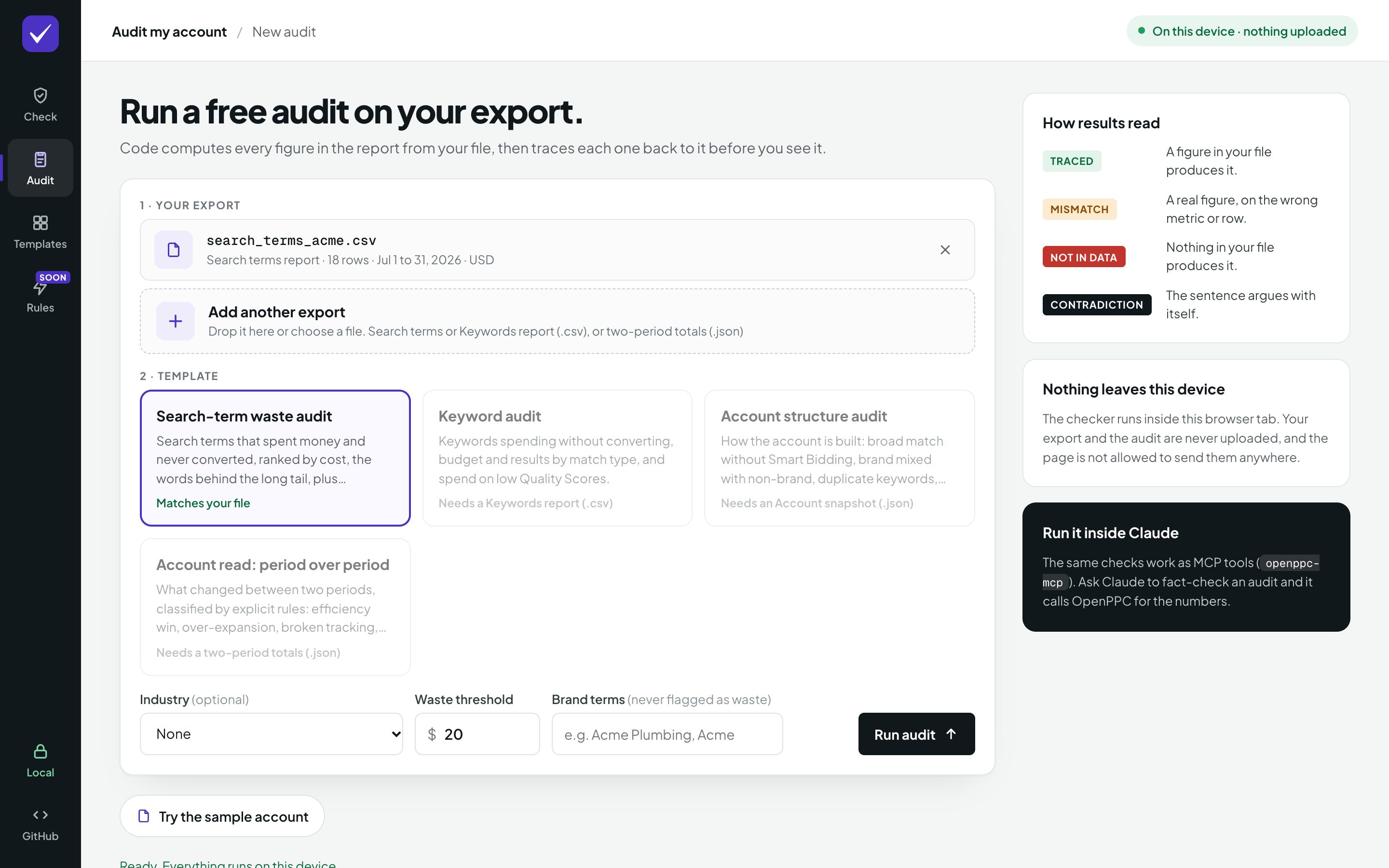
Click Audit in the left menu and drop your export on the page. OpenPPC picks the template that matches your file. Optionally choose your industry to compare against its averages, and add your brand names so brand searches are never counted as waste. Then click Run audit.
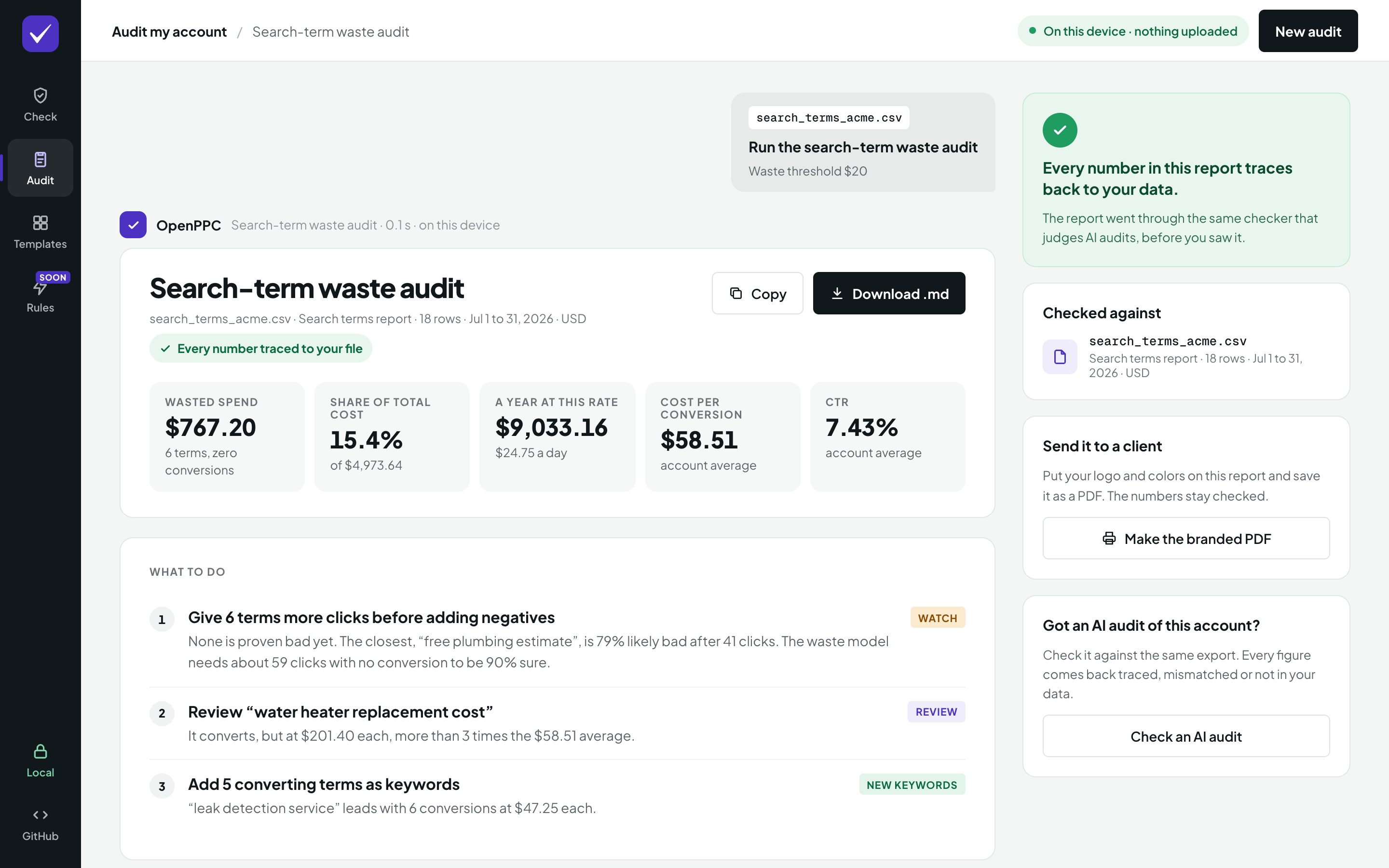
The results open with the headline numbers and what to do, in order.
Act on the wasted terms
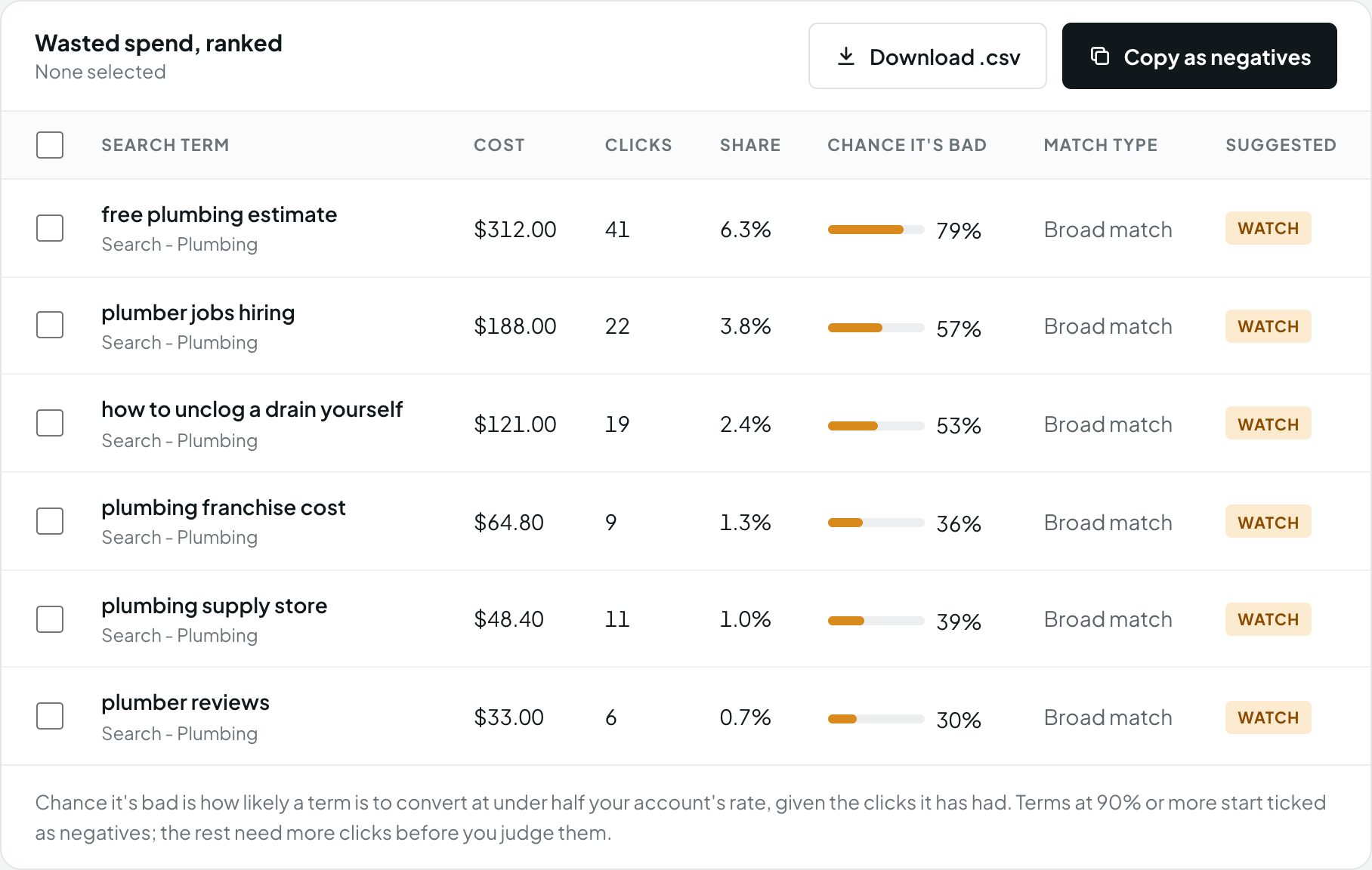
Scroll to Wasted spend, ranked. Each term shows the chance it is genuinely bad. Terms at 90% or more start ticked. Tick or untick terms, then click Copy as negatives to paste them into Google Ads as exact match, or Download .csv.
Check an AI audit
Click Check. Paste the audit, from ChatGPT, Claude, Gemini or an agency, and add the export it was written from. Click Check numbers.
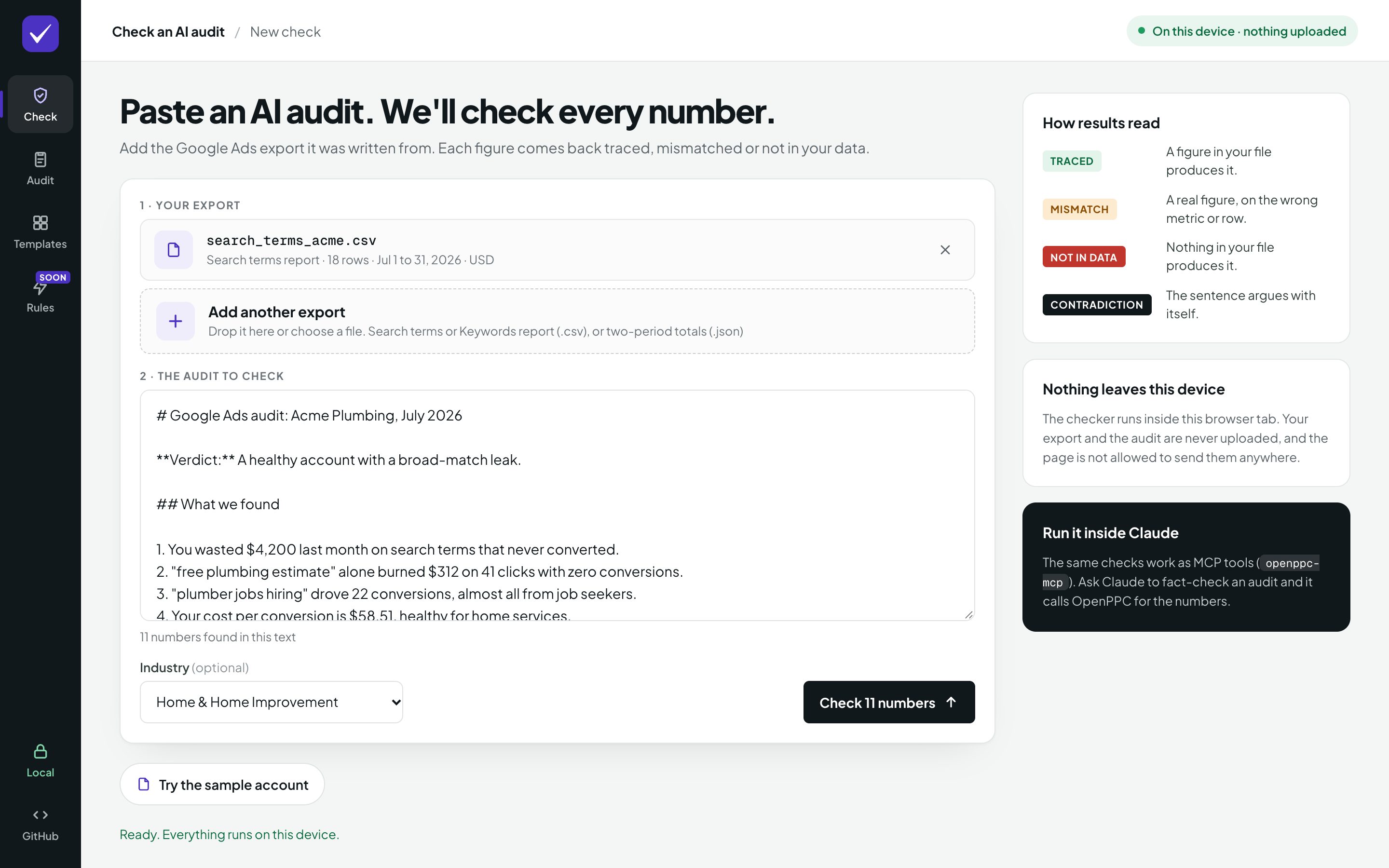
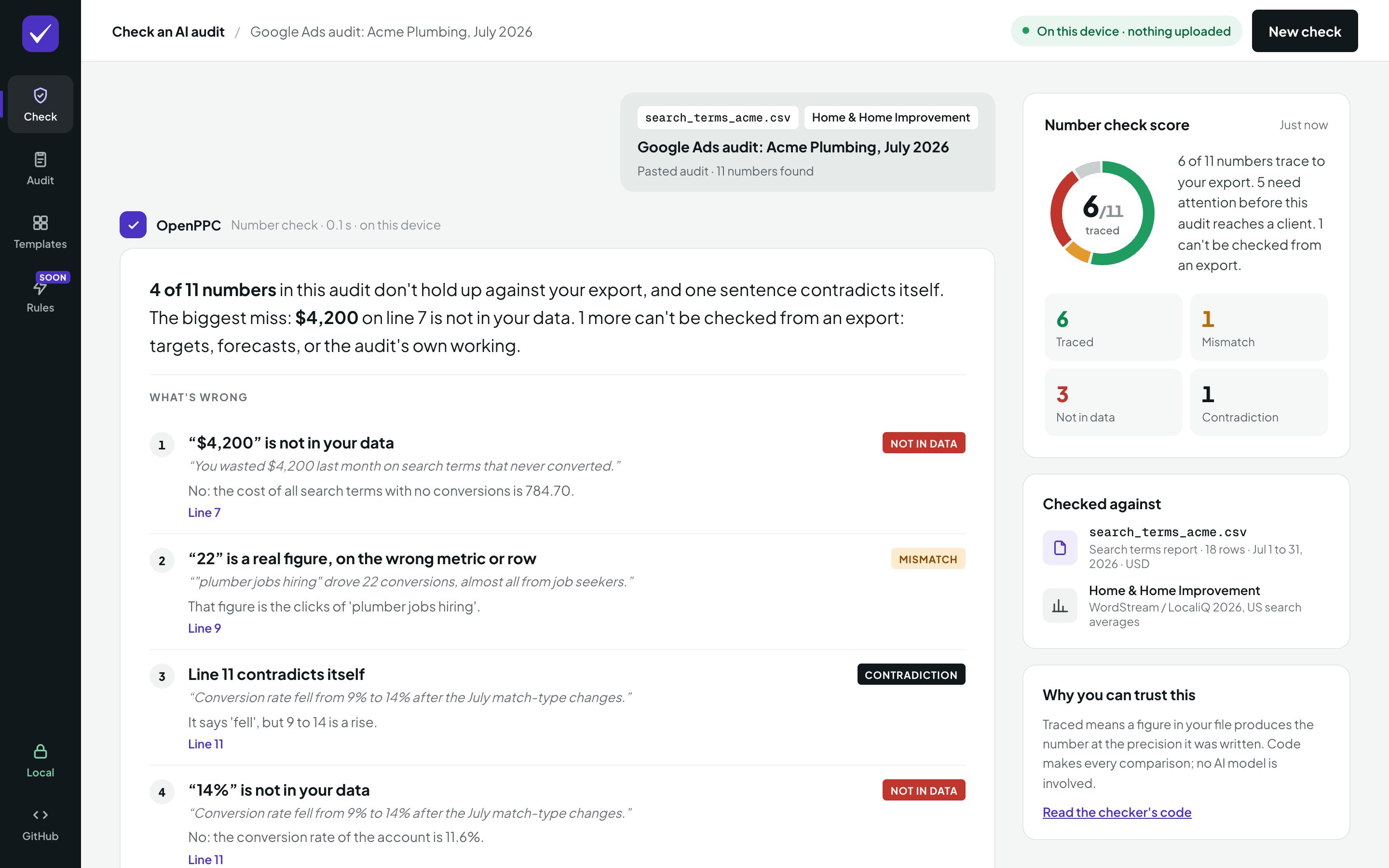
Each number comes back traced, a mismatch (a real figure on the wrong metric or row), not in your data, or can't check (a target, a forecast, or the audit's own working over rows an export can't rebuild). Sentences that argue with their own numbers are flagged too. Copy fix list gives you a note to send back to whoever wrote the audit, and Ask for the working asks them to show how they got the rest.
Make a branded PDF
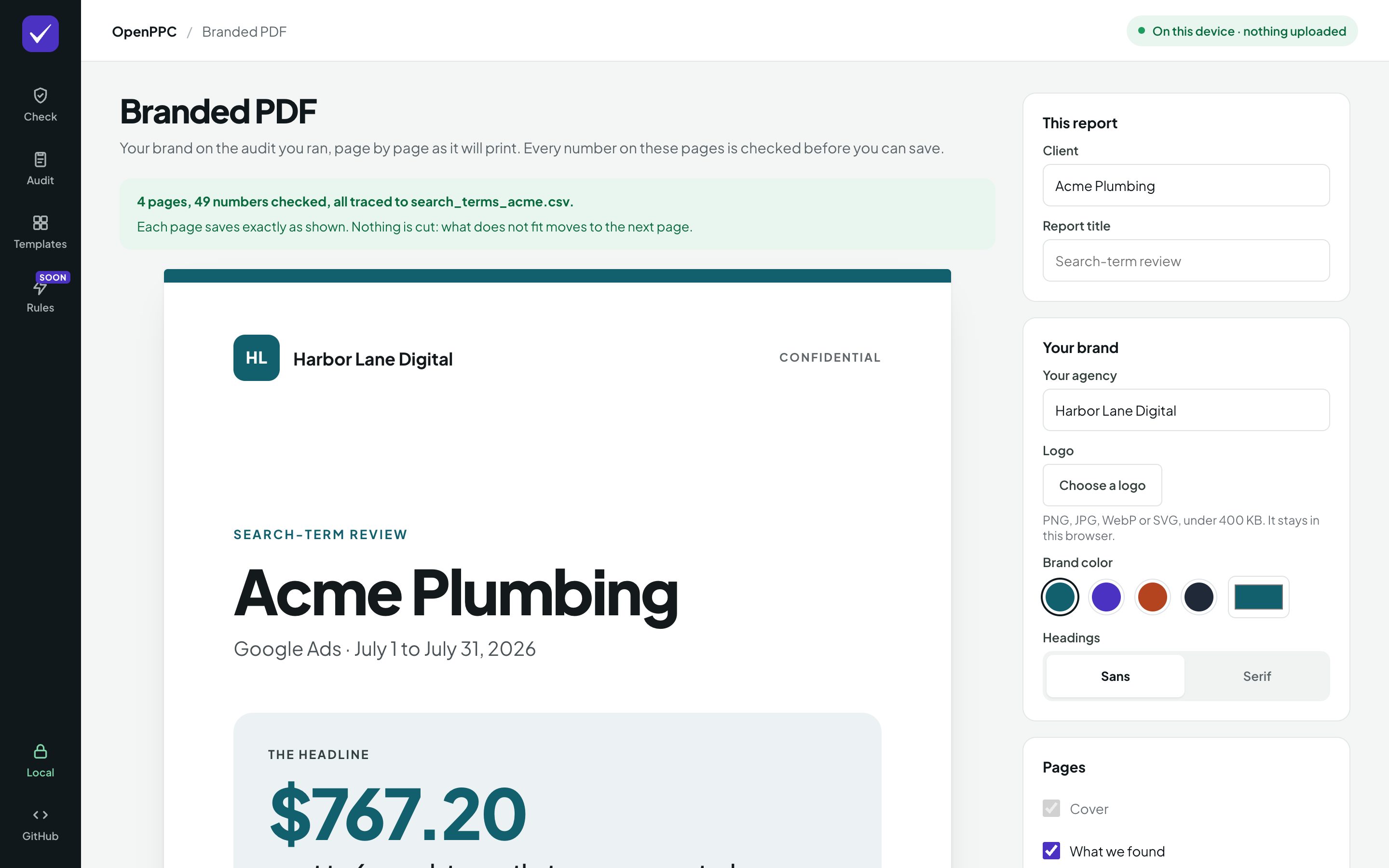
From audit results, click Make the branded PDF. Add your agency name, logo and brand color, the client's name and the paper size. The preview shows every page exactly as it will print. When the checker has traced every number, Save as PDF unlocks. Your browser's print dialog opens: choose Save as PDF.
Run it on your computer
The command line runs the same engine with no network calls. You need Python 3.10 or newer, Git, and uv (or pip).
$ git clone https://github.com/secondsteplabs/openppc
$ cd openppc
$ uv venv && uv pip install -e .
Try it on the sample files, which need no account and no keys:
$ openppc audit search-term-waste examples/search_terms_acme.csv --industry home-services

# Search-term waste audit
## Summary
**6 search terms spent $767.20 and never converted.** That is 15.4% of the
$4,973.64 total cost in this export, and each one cost at least $20.00.
$ openppc check --audit examples/ai_audit_sample.md --data examples/search_terms_acme.csv --industry home-services

# Number check
**11 numbers found: 6 traced to your data, 1 mismatched, 4 not in your data.**
1 sentence(s) contradict their own numbers.
Your own data
Put your exports in the exports/ folder, which Git ignores, so they are never committed.
$ openppc audit search-term-waste exports/search_terms.csv --brand "Your Brand, Short Name"
$ openppc check --audit my-audit.md --data exports/search_terms.csv
$ openppc templates   # every template
$ openppc industries  # every benchmark industry
Use it inside Claude, Cursor and ChatGPT
OpenPPC is an MCP server, so AI assistants can call it while they work. Your assistant writes the words, and OpenPPC supplies and checks the numbers. On your computer it reads your exports where they are. These setups use uv, which fetches and runs OpenPPC for you. OpenPPC isn't on PyPI yet, so the commands fetch it from GitHub.
Claude Code
$ claude mcp add openppc -- uvx --from "openppc[mcp] @ git+https://github.com/secondsteplabs/openppc" openppc-mcp
Claude Desktop
Open Settings, then Developer, then Edit Config, add OpenPPC to claude_desktop_config.json, and restart Claude Desktop.
{
  "mcpServers": {
    "openppc": {
      "command": "uvx",
      "args": ["--from", "openppc[mcp] @ git+https://github.com/secondsteplabs/openppc", "openppc-mcp"]
    }
  }
}
claude.ai
On the web, Claude needs OpenPPC as a web connector. A hosted one at https://mcp.openppc.si/mcp is coming soon. Until then, run openppc-mcp --http on a server of your own behind HTTPS, then open Settings, then Connectors, then Add custom connector, and paste its /mcp address. The connector keeps nothing.
Cursor
Click Add to Cursor, or open Cursor's MCP settings and add the server to ~/.cursor/mcp.json, or to .cursor/mcp.json in a project.
{
  "mcpServers": {
    "openppc": {
      "command": "uvx",
      "args": ["--from", "openppc[mcp] @ git+https://github.com/secondsteplabs/openppc", "openppc-mcp"]
    }
  }
}
ChatGPT
ChatGPT connects to MCP servers on the web, not on your computer, and needs a paid plan with Developer mode. Menu names change from time to time; OpenAI's guide has the current path.
- Open Settings, then Security and login, and turn on Developer mode.
- Open ChatGPT Plugins and click the plus button.
- Name it OpenPPC, and under Connection paste your connector's
/mcpaddress. The hosted one,https://mcp.openppc.si/mcp, is coming soon.
Then attach your export in a chat and ask ChatGPT to audit it, or to check an audit against it. ChatGPT passes the file's contents to OpenPPC.
With a web connector, your export goes through that server to be audited. It is processed in a temporary folder that is deleted when the call ends, and its contents are never stored or logged. To keep the export on your computer instead, run OpenPPC locally and connect it with OpenAI's Secure MCP Tunnel: ChatGPT then receives only the report.
Run the connector yourself
The connector is the same program with --http. Its tools then take the file's contents and never read paths:
$ openppc-mcp --http --host 0.0.0.0 --port 8000
Put it behind HTTPS and point ChatGPT or claude.ai at https://your-host/mcp.
Every assistant gets the same three read-only tools: list_templates, an audit tool and a check tool. On your computer they are audit_account and check_numbers, which read files by path; on the connector they are audit_export and check_audit, which take the file's contents. Try asking: "Check every number in this audit against my search terms export."
Host it yourself
The browser app is a folder of static files, with no server code. Serve the web folder from any static host, or run it locally:
$ python3 -m http.server 8765 --directory web
Then open http://localhost:8765.
If something goes wrong
- The app says it can't read the file. Export the report again from Google Ads as .csv, and check it is a search terms or keywords report, not a campaign report.
- The engine will not load. The first visit needs an internet connection to download the engine once. After that it works from your browser's cache.
- The PDF looks different in Safari or Firefox. Save it from Chrome or Edge, which keep the page layout exactly.
- Claude Desktop or Cursor can't start OpenPPC. Apps opened from the Dock may not find
uvx. Runwhich uvxin a terminal and put the full path it prints in"command". - ChatGPT or claude.ai doesn't list the tools. Check that the address ends in
/mcp, and in ChatGPT that Developer mode is on. - Something else. Open an issue on GitHub with the steps to repeat it. Never attach a client's export.